4 Key Factors Influencing Consumer Behavior (BBA/MBA Students)
Understanding consumer behavior is the cornerstone of a successful marketing strategy. A consumer’s decision to purchase a product is not made in a vacuum; it’s the result of a complex interplay of various influencing forces.
These can be broadly categorized into four key factors.
1. Cultural Factors
Culture is a complex mix of symbols, values, beliefs, and artifacts created by a society and passed down through generations.
It’s the most basic cause of a person’s wants and behavior.
Culture Shapes Behavior: The way people perform basic activities like eating is culturally determined. A hungry Indian consumer might want rice and dal, while an American might prefer a hamburger and a Coke.
Culture Sets Values: American culture often emphasizes achievement, success, and material comfort, whereas Indian culture may place a higher value on peace, harmony, and service.
Sub-culture: Within a larger culture, there are smaller sub-cultures. These groups share distinct behavioral patterns based on common life experiences and situations.
For example, within the general Indian culture, there are specific sub-cultures like Punjabi, Bengali, and South Indian, each with unique characteristics.
2. Social Factors 👨👩👧👦
A consumer’s behavior is also heavily influenced by social factors.
Reference Groups
These are groups of people who interact and influence each other’s attitudes and behaviors.
Primary Groups: These are groups with which there is regular and informal interaction, such as family, friends, neighbors, and co-workers.
Secondary Groups: These groups are more formal and have less regular interaction, like trade unions or professional associations.
Opinion Leaders: Marketers try to identify and reach opinion leaders within reference groups. These are people who, because of special skills or personality, have a significant influence on others. Celebrity endorsements are a common way to leverage this influence.
Family
The family is the most important consumer buying organization in society. Family members can strongly influence a buyer’s behavior. Marketers are interested in the roles and influence of the husband, wife, and children on the purchase of different products. For example, the buying decision center is shifting, with female members and even children now having a strong influence on major purchases like cars or real estate.
Roles and Status
A person belongs to many groups—family, clubs, organizations. The person’s position in each group can be defined in terms of both role and status. A role consists of the activities people are expected to perform. Each role carries a status reflecting the general esteem given to it by society. For example, a person may have the role of a father and a Managing Director; their buying choices will reflect their role and status.
Social Class
Social Class is a hierarchical stratification within a society where members share similar values, interests, and behaviors. In India, a general three-class system exists: Upper Class (15%), Middle Class (65-70%), and Lower Class (15-20%). People within a particular social class tend to show distinct product and brand preferences in areas like clothing, cars, and home furnishings.
3. Personal Factors 👤
A buyer’s decisions are also influenced by personal characteristics.
Age and Life-Cycle Stage
People change the goods and services they buy over their lifetimes. Consumption is shaped by the family life cycle. A young, single person will have a different consumption pattern than a middle-aged parent.
The nine stages include:
Bachelor stage
Newly married couples
Full nest I (youngest child under 6)
Full nest II (youngest child 6 or over)
Full nest III (older couples with dependent children)
Empty nest I (children have left home, head is working)
Empty nest II (head is retired)
Solitary survivor, in labor force
Solitary survivor, retired
Occupation
A person’s occupation affects the goods and services they buy. For example, blue-collar workers tend to buy more rugged work clothes, whereas corporate executives buy more business suits.
Lifestyle
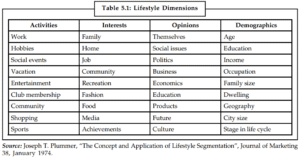
Lifestyle is a person’s pattern of living as expressed in their Activities, Interests, and Opinions (AIO). It captures more than just a person’s social class or personality; it profiles their “whole person”. The “Complete Man” positioning by Raymond is a successful example of branding based on consumer lifestyle.
4. Psychological Factors
A person’s buying choices are further influenced by four major psychological factors.
Motivation
Motivation is the force that energizes behavior and gives it direction. Several theories are used to analyze consumer motivation:
Freud’s Theory: Suggests that a person’s buying decisions are affected by unconscious psychological forces.
Maslow’s Theory: Proposes that human needs are arranged in a hierarchy, from the most pressing at the bottom to the least pressing at the top. A person tries to satisfy the most important need first. These needs are Physiological, Safety, Social, Esteem, and Self-actualization.
Hertzberg’s Theory: Distinguishes between “dissatisfiers” (factors that cause dissatisfaction) and “satisfiers” (factors that cause satisfaction). For a purchase to be motivated, satisfiers must be present.
Perception
Perception is the process by which people select, organize, and interpret information to form a meaningful picture of the world. It’s an individual process that depends on internal factors like beliefs, experiences, and moods. For example, if you perceive Tata Sky as the best DTH service, you’re likely to buy it.
Learning
Learning describes changes in an individual’s behavior arising from experience. It is the process by which individuals acquire the purchase and consumption knowledge they apply to future buying behavior.
Attitudes
An attitude is a learned predisposition to behave in a consistently favorable or unfavorable way toward a given object, such as a product, brand, or company. Attitudes are important because they strongly affect consumer behavior.