How to Use Graphics and Objects in MS Word Step by Step
Working with Visuals & Objects
Adding visual elements like pictures, diagrams, and charts can make your documents more engaging and easier to understand. Modern versions of Word offer a powerful set of tools on the Insert tab to help you add and manage these objects.
Inserting Pictures and Graphics
MS Word allows you to insert pictures from your computer or from online sources.
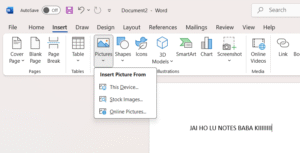
Place your cursor where you want the image to appear.
Go to the Insert tab on the Ribbon.
In the Illustrations group, choose one of the following:
Pictures: Click this to browse for an image file stored on your computer.
Online Pictures: This opens a search window where you can find stock images, creative commons photos, and icons to use in your document. This is the modern replacement for the old “Clip Art” gallery.
Once an image is inserted, you can easily resize it by clicking on it and dragging the small circles (sizing handles) at its corners.
Using SmartArt and Shapes
SmartArt
SmartArt is a collection of graphics you can use to visually organize information. It’s perfect for creating diagrams for timelines, processes, cycles, or hierarchies.
To insert one, go to the Insert tab and click SmartArt. Choose a layout from the gallery that fits your needs and then type your text directly into the graphic.
Shapes
Shapes (formerly known as AutoShapes) are ready-made shapes like arrows, circles, squares, and flow-chart symbols.
To add a shape, go to the Insert tab and click Shapes. Select the shape you want from the drop-down menu, and then click and drag on your document to draw it.
Object Linking and Embedding (OLE)
You can insert objects from other programs (like an Excel chart or spreadsheet) directly into your Word document. This technology is called Object Linking and Embedding (OLE). When you insert an object, you must decide if you want to link it or embed it.
Linked Objects
A linked object maintains a direct connection to its original source file.
How it works: If you update the data in the original file (e.g., change the numbers in your Excel spreadsheet), the object in your Word document will automatically update to reflect those changes.
Benefit: This keeps your information current and helps keep your Word document’s file size smaller, as the data is stored in the separate source file.
Embedded Objects
An embedded object becomes a permanent part of your Word document and loses its connection to the original source file.
How it works: If you change the original source file, the embedded object in your Word document will not change.
Benefit: This is useful when you need to distribute a self-contained document to people who don’t have access to the original source files.